
Guides
How to Run an AI Video Generator at Home
If you want to run an AI video generator at home, the most practical answer is: use a browser-based AI video tool that works on your own laptop…

If you want to run an AI video generator at home, the most practical answer is: use a browser-based AI video tool that works on your own laptop or desktop, then create short clips from text or images without needing a complex local setup. This article explains what you can realistically do at home, what limits to expect, and how to get the best results from a short-form AI video workflow.
For most users, the value is simple: you can experiment with AI-generated video at home, produce short clips quickly, and avoid the overhead of installing and maintaining large local models.
1. What “Running an AI Video Generator at Home” Usually Means
Conclusion: For home users, “running” an AI video generator usually means using an online app in your browser, not hosting a full production system on your own server.
Explanation:
Based on the reference product scope, the current workflow supports text-to-video and image-to-video generation through a web app. That makes it suitable for home use because you can create clips directly from a prompt or a reference image without managing a complex local model stack.
This matters because many people search for “how to run” and expect a local install. In practice, the easiest home setup is a browser-based generator that handles the rendering for you. It is especially useful for short-form content rather than long cinematic projects.
Practical advice:
- Use a web-based AI video generator if you want the simplest home setup.
- Prepare either a short prompt or one reference image before you start.
- Treat the tool as a short-form video solution, not a full long-form production system.
2. What the Current Home Workflow Supports
Conclusion: The best home workflow is short, focused, and limited to the features the tool supports well.
Explanation:
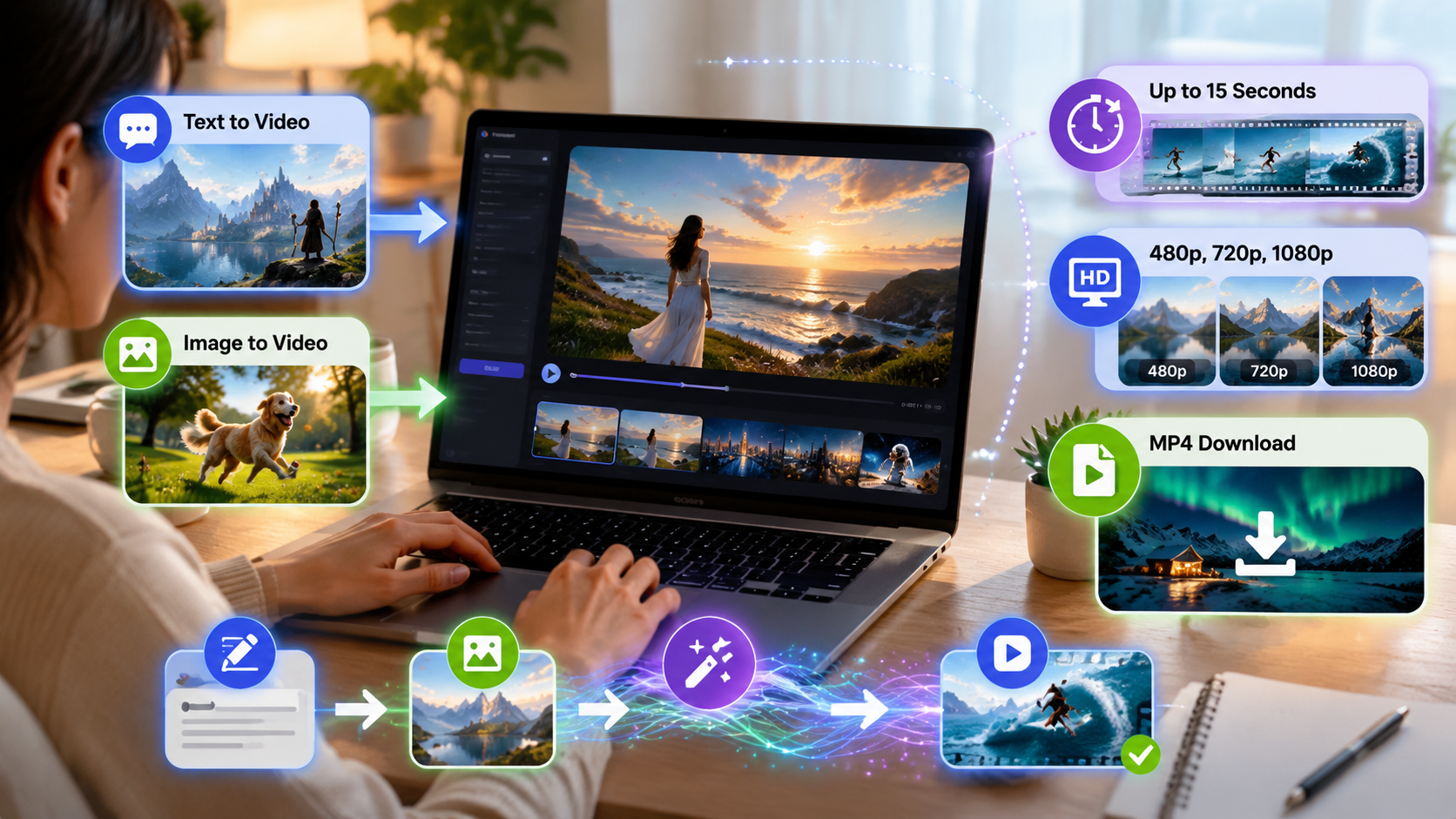
The referenced Seedance 2.0 workflow supports:
- Text to video
- Image to video
- Up to 15 seconds in length
- 480p, 720p, and 1080p output options
- MP4 download after rendering
It also currently does not support audio generation, so the output is video-only. That means you should plan your content accordingly if you want to publish it later with music, voiceover, or sound effects added in editing.
Feature overview
| Capability | Current support |
|---|---|
| Text to video | Yes |
| Image to video | Yes |
| Maximum duration | 15 seconds |
| Resolution options | 480p, 720p, 1080p |
| Download format | MP4 |
| Audio generation | Not supported |
Practical advice:
- Keep prompts short and specific for cleaner results.
- Use image-to-video when you want more control over the visual starting point.
- Choose a resolution based on your use case: lower for fast testing, higher for better final output.
- Add audio later in a video editor if needed.
3. How to Set Up an Efficient AI Video Workflow at Home
Conclusion: You do not need a complicated workstation to get started, but you do need a clear workflow.
Explanation:
A good home workflow starts with planning the clip before generating it. Since the current app is built for short-form production, the best results usually come from simple, focused ideas such as product shots, explainer sequences, fashion clips, lifestyle scenes, or brief entertainment-style motions.
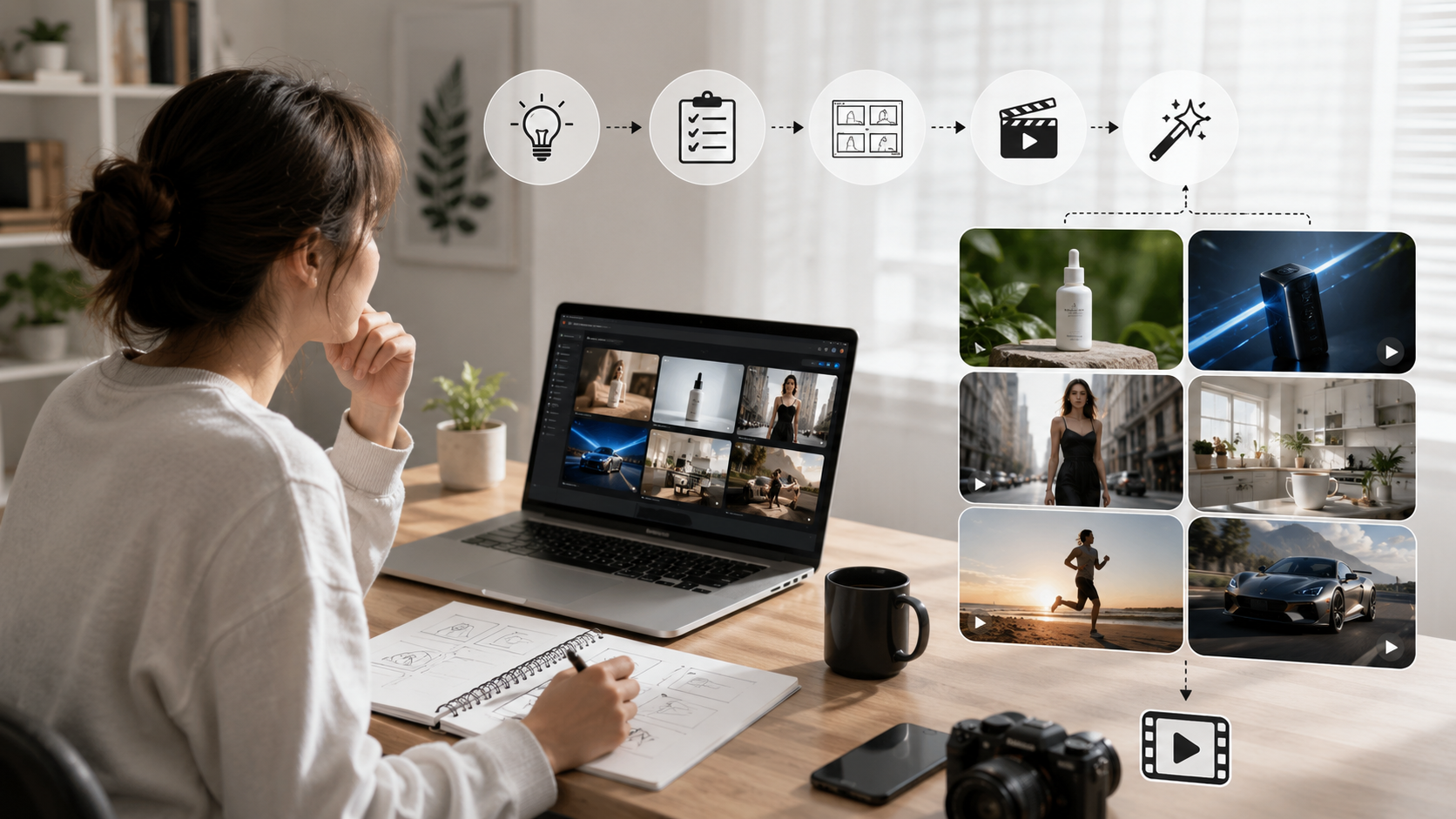
The reference examples show that the system is suited to compact scenes rather than lengthy storytelling. That makes it a strong fit for creators who want fast visual drafts or short promotional assets.
Practical advice:
- Decide the purpose of the clip first: product, explainer, documentary-style, fashion, or lifestyle.
- Write one clear prompt or choose one strong reference image.
- Generate a short clip rather than trying to pack too much into one render.
- Export the file as MP4 and review it on your local machine.
- If needed, refine the prompt and create a second version.
4. What to Expect From Output Quality and Limits
Conclusion: At home, the key is to work within the tool’s output limits and use them intentionally.
Explanation:
The current resolution options are 480p, 720p, and 1080p, and the duration limit is 15 seconds. That means the generator is designed for concise clips rather than extended scenes. The examples indicate that the tool can support a variety of short-form styles, including product, documentary, explainer, fashion, lifestyle, and entertainment formats.
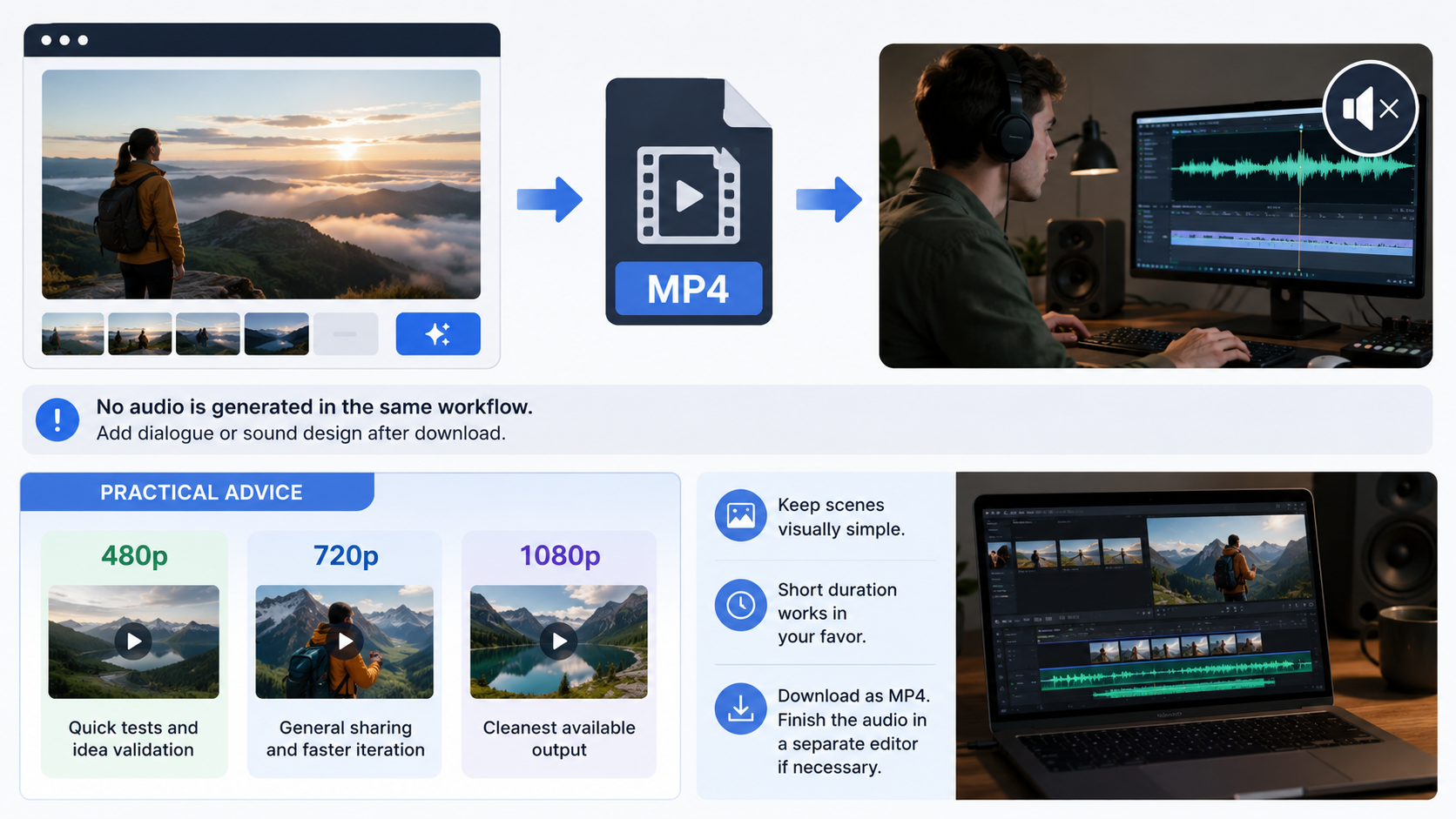
This also means you should not expect audio generation from the same workflow. If your project needs dialogue or sound design, plan to add that after download.
Practical advice:
- Use 480p for quick tests and idea validation.
- Use 720p for general sharing and faster iteration.
- Use 1080p when you want the cleanest available output.
- Keep scenes visually simple so the short duration works in your favor.
- Download as MP4 and finish the audio in a separate editor if necessary.
FAQ
Can I run an AI video generator completely offline at home?
The reference workflow describes a web app and API-based service. Based on that information, the practical home approach is browser-based generation rather than a fully offline local install.
Does it support audio generation?
No. Audio generation is currently not supported, so the focus is on short-form video rendering.
How long can the videos be?
The current limit is up to 15 seconds.
What resolutions are available?
The available resolution options are 480p, 720p, and 1080p.
What format can I download?
Finished renders can be downloaded as MP4.
Can I generate from text and images?
Yes. The current app scope supports both text-to-video and image-to-video.
Conclusion
Running an AI video generator at home is most practical when you use a browser-based tool that handles rendering for you. With support for text-to-video, image-to-video, up to 15 seconds of output, selectable resolutions, and MP4 downloads, the workflow is well suited to short-form creative projects.
If you keep your prompts focused, use the right resolution for the job, and plan for separate audio editing when needed, you can produce useful AI video clips at home without a complex setup.